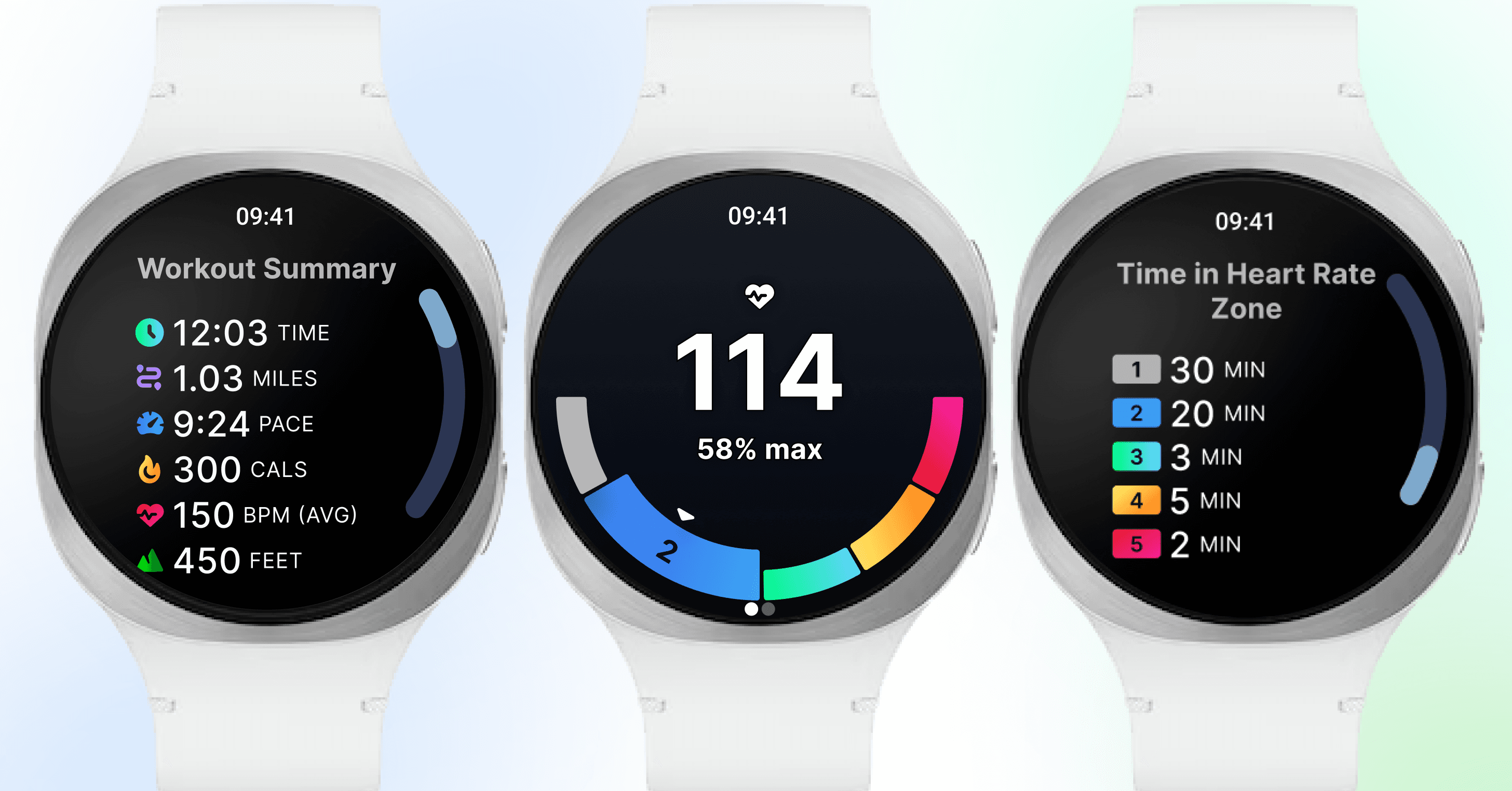
Level Up Your Workouts: iFIT + Samsung Galaxy Watch Compatibility is Here
Samsung Galaxy WatchⓇ users can now pair¹ their watch with iFIT-enabled machines², including NordicTrack and ProForm, to unlock live heart rate training, smarter metrics, and a fully connected workout experience.
How it works
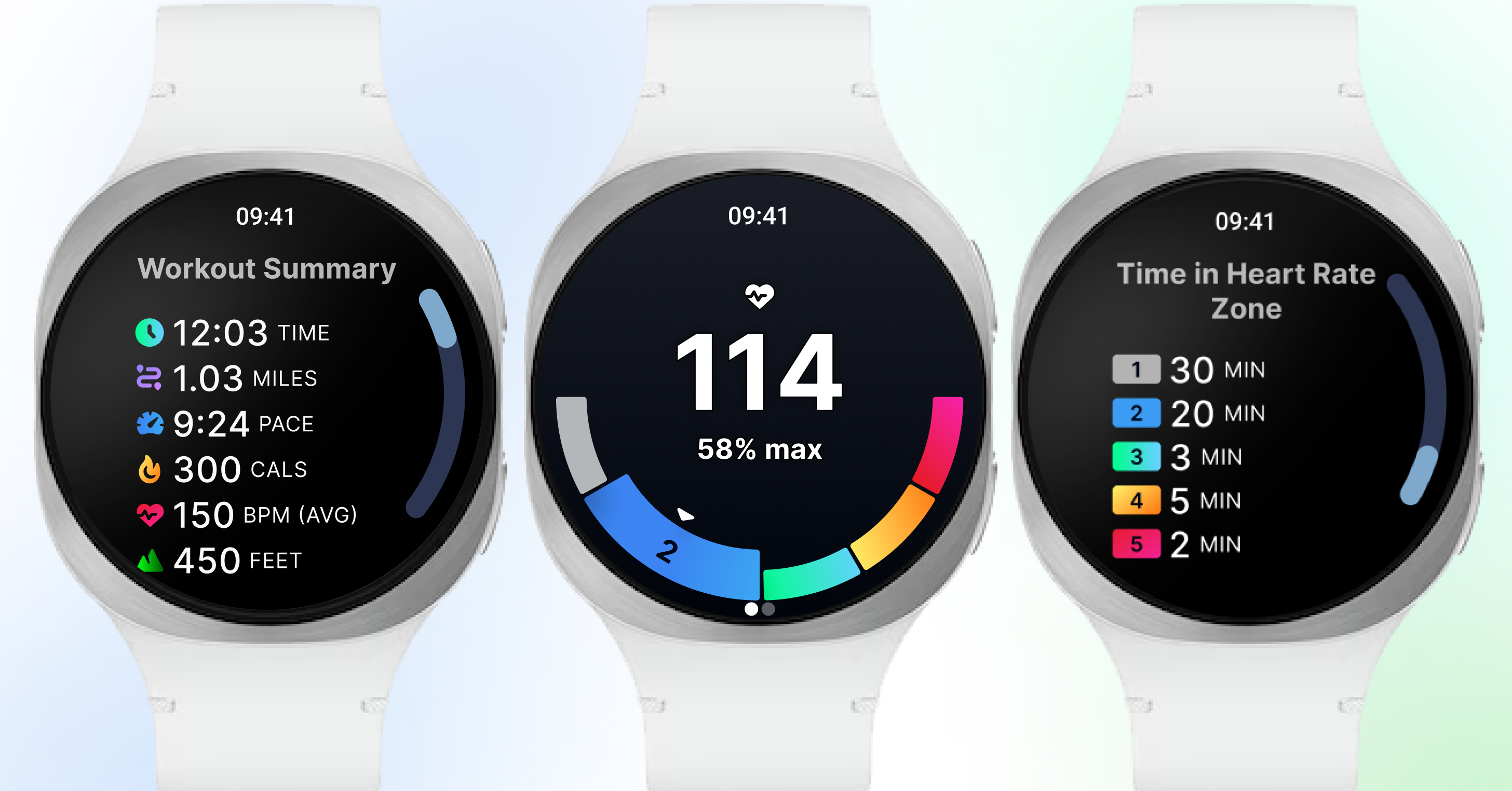
Once you complete the setup (see detailed instructions below), your Galaxy Watch will broadcast your heart rate directly to your iFIT-connected machine’s console.
Real-Time Heart Rate & Zone Tracking
Once paired, your Galaxy Watch displays your live heart rate on your iFIT-enabled equipment screen. With color-coded heart rate zones, you’ll know exactly how hard you’re working so you can train smarter, not just harder.
Smarter Calorie Burn & Performance Stats
Your stats are powered by heart rate data, providing estimates of your calorie burn and workout intensity. That means more meaningful feedback and a better way to track your progress over time.
Effortless Pairing & Samsung Health Sync
No complicated setup or extra gear. Tap the push notification to open the iFIT app, and you’re ready to train. After your workout, everything syncs to Samsung Health so you can see your full fitness picture, all in one place.
ActivePulse™ Smart Training (Treadmills Only)
Treadmill users get an extra bonus: ActivePulse™, iFIT’s smart heart rate training technology. ActivePulse automatically adjusts your treadmill’s speed and incline in real time based on your heart rate zone, so you stay optimized and on track.
Who Can Use It?
Samsung Galaxy Watch compatibility is available for users with a compatible Galaxy Watch¹ and the latest iFIT app version, paired with select NordicTrack and ProForm machines. Whether you’re a casual walker or a hardcore interval trainer, this feature brings a new level of intelligence and personalization to your workouts.
How to Get Started
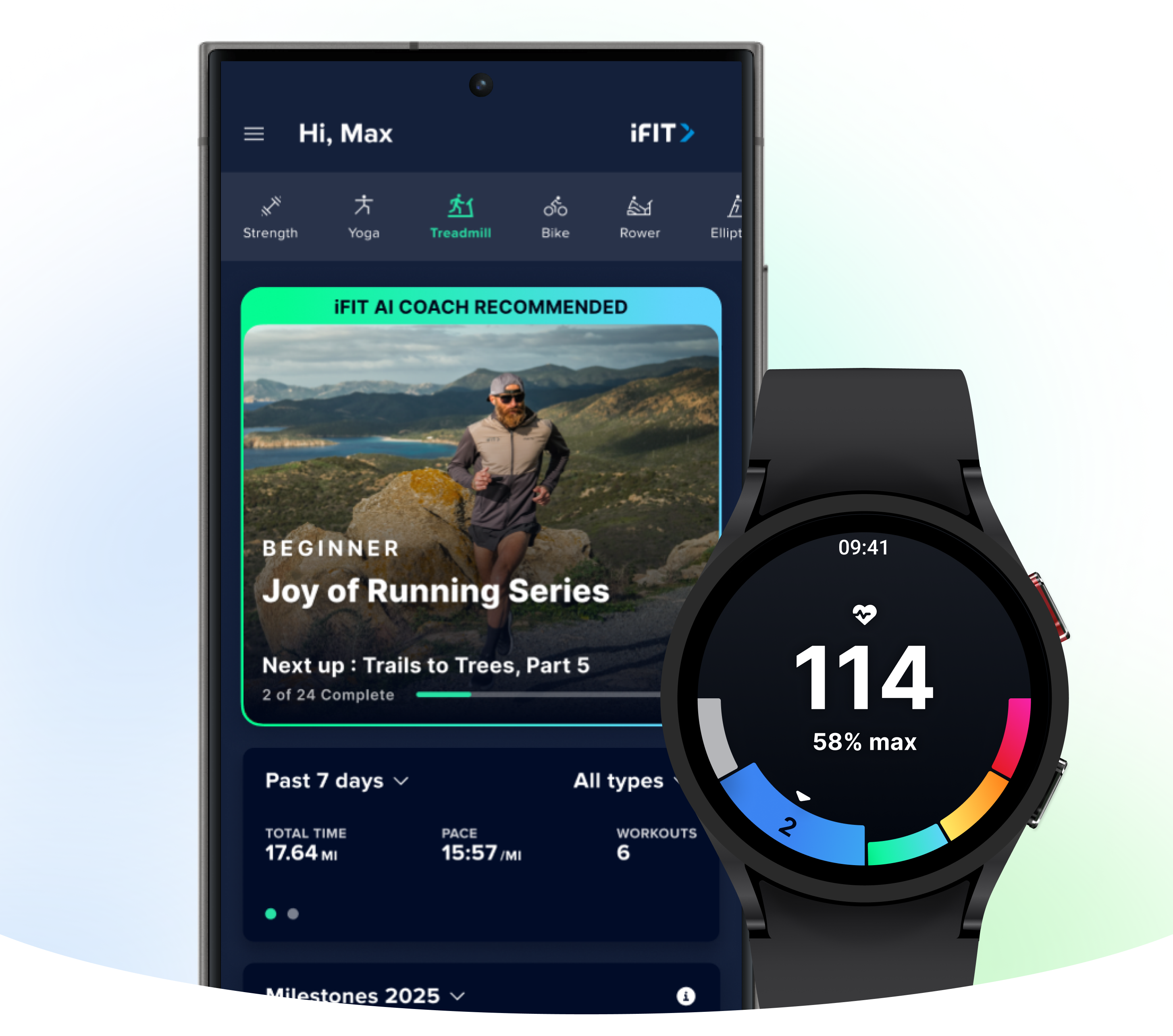
Before you can start tracking, there are some simple steps to set up your device. Once you’ve completed this one-time setup process, you’ll just tap the notification on your watch at the beginning of each workout to connect and begin tracking.
Step 1: Prepare your devices
Make sure your phone is running Android 14+ and make sure your Galaxy Watch™ has Wear OS 5.0+ installed. Then, install or update the iFIT mobile app on your phone.
Turn Bluetooth on for both your phone and watch during setup. (Bluetooth must remain enabled during setup and workouts.) Ensure your phone, watch, and console are on the same Wi-Fi network.
Step 2: Install the iFIT watch app (automatic or manual)
You can install the app using a push notification or in-app prompt.
- Push notification: You’ll receive a push notification on your phone prompting you to install the iFIT watch app. Tap it and follow the link to the iFIT mobile app instruction screen.
- In-app: When you open the mobile app, you may see an in-app prompt to “Set up now.” Tap it to go to Connected Apps → Galaxy Wearable for install instructions.
- If prompted, open the Google Play Store on your watch and install the iFIT companion app. (Requires Wear OS 5.0+ and Android 14.)
Note: If you don’t install right away, push notifications will repeat every five days (up to three times). The in-app prompt will show up each time you open iFIT (up to three times) unless you select “Don’t ask me again.”
Step 3: Enable permissions on your watch
Open iFIT on your Galaxy Watch and accept the required permissions (notifications, locations, etc.). Permissions are required for the watch to share heart rate and other session data with the console.
If you skip notification permission during setup, you can enable it later in your phone settings, but you will not receive push notifications on your watch until that permission is granted.
Step 4: Start a workout on your machine
Begin a workout from your machine. Tap the push notification on your watch to open the iFIT app. Tap connect to begin broadcasting heart rate to your equipment. If you open the watch app without a workout active, it will prompt you to start a workout on your machine.
Step 5: The in-workout experience
By default, your heart rate will be displayed in the metrics bar on your screen. If ActivePulse³ is enabled in workout settings, you’ll also see the ActivePulse™ onscreen widget and automatic adjustments based on your heart-rate zones. You can disconnect the watch at any time during a workout via the disconnect button (swipe horizontally in the in-workout view to access).
Step 6: The post-workout experience
After your workout is complete, a summary will be shown on your watch. Workout data syncs from the mobile app to Samsung Health on Android phones.
Permissions & helpful tips
- All permissions must be accepted to use the Watch app fully. If you deny them, these features (push notifications, heart-rate sharing) will not work.
- Bluetooth must be enabled on both phone and watch during setup; the watch will prioritize your phone’s internet connection when Bluetooth is active.
- If you have trouble installing, make sure your watch OS and phone OS meet the minimum versions and that you can access the Google Play Store on the watch.
- Ensure your phone, watch, and console are on the same Wi-Fi network.
- If install fails, open the Google Play Store on your watch directly and search for iFIT to install. Please ensure the Wear app is also downloaded on your phone.
We’re thrilled to bring Galaxy Watch support to iFIT machines. We’re committed to creating personalized fitness experiences for you, starting with a seamless connection to the wearables you love. Update your iFIT app and watch OS, follow the setup steps above, and get ready to work out.
1. Requires Samsung Galaxy Watch with Wear OS 5.0+ and Android 14+. Paid iFIT Pro or Train membership required to set up the Samsung Galaxy Watch connection. Must have the latest iFIT OS installed on an iFIT-enabled bike, rower, elliptical, or treadmill with a touch screen.
2. This functionality is currently available only on iFIT-enabled devices with a built-in screen. It is not available for non-connected mobile app workouts at this time.
3. ActivePulse™ is only available on iFIT-enabled treadmills.
The primary purpose of this blog post is to inform and entertain. Nothing on the post constitutes or is intended to be a substitute for professional medical advice, prevention, diagnosis, or treatment. Reliance on any information provided on the blog is solely at your own risk. Always seek the advice of your physician or other qualified health provider with any questions you may have regarding a medical condition, and please consult your doctor or other health care provider before making any changes to your diet, sleep methods, daily activity, or fitness routine. Do not disregard professional medical advice or delay seeking it because of information available on this blog. NordicTrack assumes no responsibility for any personal injury or damage sustained by any recommendations, opinions, or advice given in this article. Always follow the safety precautions included in the owner’s manual of your fitness equipment.
This article was authored by iFIT and may contain affiliate links. If you buy a product after clicking a link, iFIT may earn commissions.
You might also like
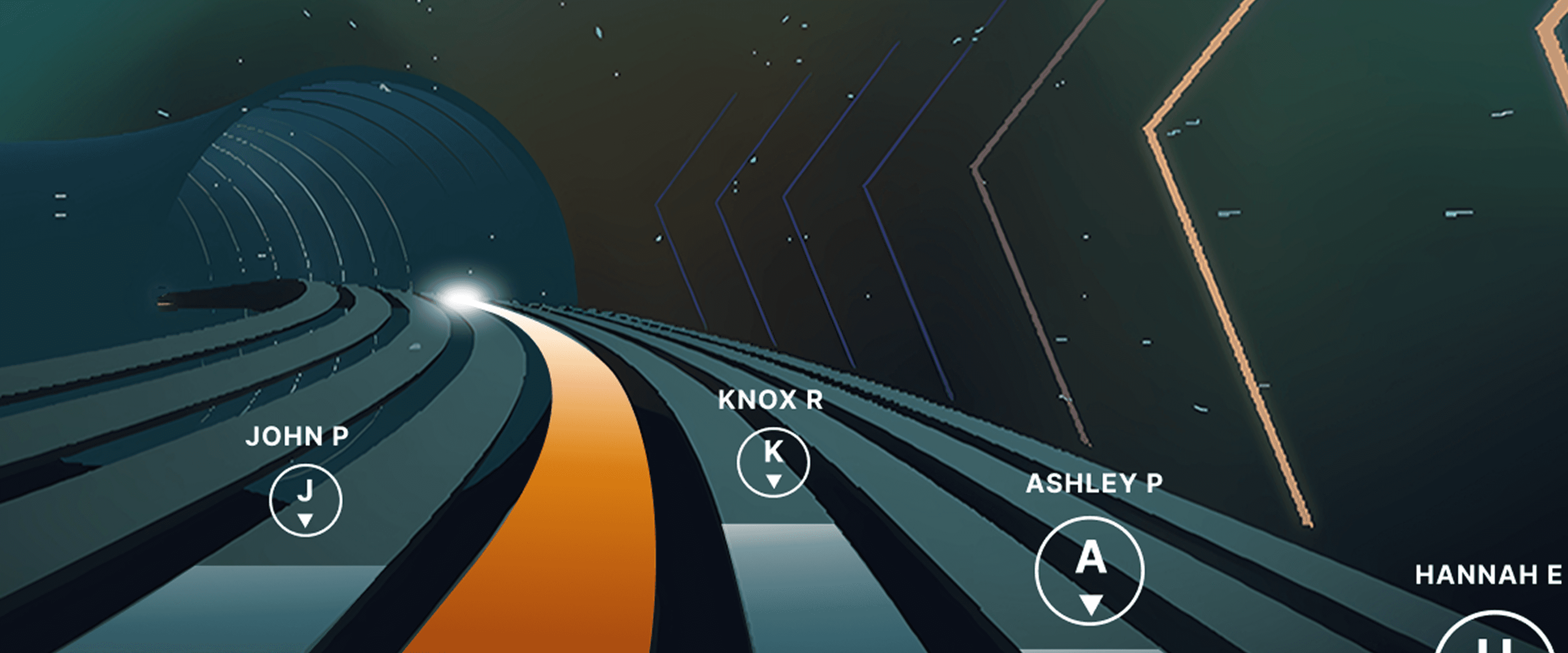
Races, Powered by Ergatta: An Interactive New Way to Work Out on Your Rower, Bike, and Treadmill with iFIT
Ready to explore your competitive side? iFIT has partnered with Ergatta to bring Races to iFIT-enabled rowers, bikes, and treadmills. These new interactive game-based workouts offer a fun new way to challenge yourself and stay motivated. Races: now on rowers, bikes, and treadmills Originally launched for treadmills, Races Powered by Ergatta is now available on iFIT-connected bikes and rowers, giving you even more ways to compete and level up your workouts. Whether you prefer to row, ride, or run, you can tap into the same immersive, competitive experience across all three equipment types. Choose from dozens of race workouts ranging from quick sprints to multi-stage endurance competitions and race against: Other iFIT members in friendly competitionYour favorite iFIT Trainers for extra motivation (can you beat Ashley?)Pacer bots to benchmark your performance and chase your goalsYourself in repeat races to push your limitsWith Races, you can push your limits with rewarding gameplay, chase your personal goals, and mix up your routine. Best of all, you have options: you can race against the clock, compete with the iFIT Community, or race against your past performances. This month's racesAugust brings five new races built around the energy of the season's longest days. From a holiday sprint to a long endurance ride, there's something for every pace and every machine.Sunbaked Sprint0.5 miles | Tread, Bike, RowerAugust doesn't ease up, and neither do you. Go out hard, hold nothing back, and finish before the sun even notices. Fast, fierce, and over in a flash.Swelter Surge0.75 miles | Tread, Bike, RowerStart controlled, build steadily through the middle, and push into a strong finish as the heat presses back. Quick, confident, and built for the thick of summer.Simmer Climb1.5 miles | Tread, BikeThe dog days bring a slow, steady burn and this incline-driven race matches it. Settle into a pace that holds through the climb, keep your effort even, and let the grind carry you to the finish.High Noon Glide2.5 miles | Tread, Bike, RowerPeak summer, steady effort. Lock into your rhythm through the middle miles, stay smooth under the heat, and finish strong as the sun climbs higher.Endless Summer6.2 miles | BikeBefore the season turns, one more long ride into the heat. Settle into a sustainable cadence, stay patient through the distance, and ride toward a finish that feels like summer isn't done with you yet. New for Rowers: Meteor Dive into an exclusive game-based experience for your iFIT-enabled rower with Meteor, a thrilling single-player workout that blends fitness with arcade-style gameplay. You’ll fly through space, collecting tokens and dodging obstacles while hitting personalized targets to score points. Your rowing speed controls your vertical movement, so you can row faster to fly higher. It’s structured, it’s motivating, and it’s a lot of fun. How to install Ergatta Need a little more support? Here's a step-by-step tutorial for installing Ergatta on your machine. Ready to race? Whether you're looking to challenge yourself or compete against others, Ergatta Races brings an entirely new dimension to your workouts. New races drop every month to keep things fresh. Let's race! Install the Ergatta app to get started. Then, you can explore all the Races available in Ergatta.1 1. Paid iFIT Pro membership required to access Races by Ergatta. Must have the latest iFIT OS installed on an iFIT-enabled treadmill with a touch screen that supports third-party apps.Disclaimer: The primary purpose of this blog post is to inform and entertain. Nothing on the post constitutes or is intended to be a substitute for professional medical advice, prevention, diagnosis, or treatment. Reliance on any information provided on the blog is solely at your own risk. Always seek the advice of your physician or other qualified health provider with any questions you may have regarding a medical condition, and please consult your doctor or other health care provider before making any changes to your diet, sleep methods, daily activity, or fitness routine. Do not disregard professional medical advice or delay seeking it because of information available on this blog. NordicTrack assumes no responsibility for any personal injury or damage sustained by any recommendations, opinions, or advice given in this article. Always follow the safety precautions included in the owner’s manual of your fitness equipment.
July 28, 2025
Smarter Workouts Start Now: iFIT + Apple Watch Compatibility is Here
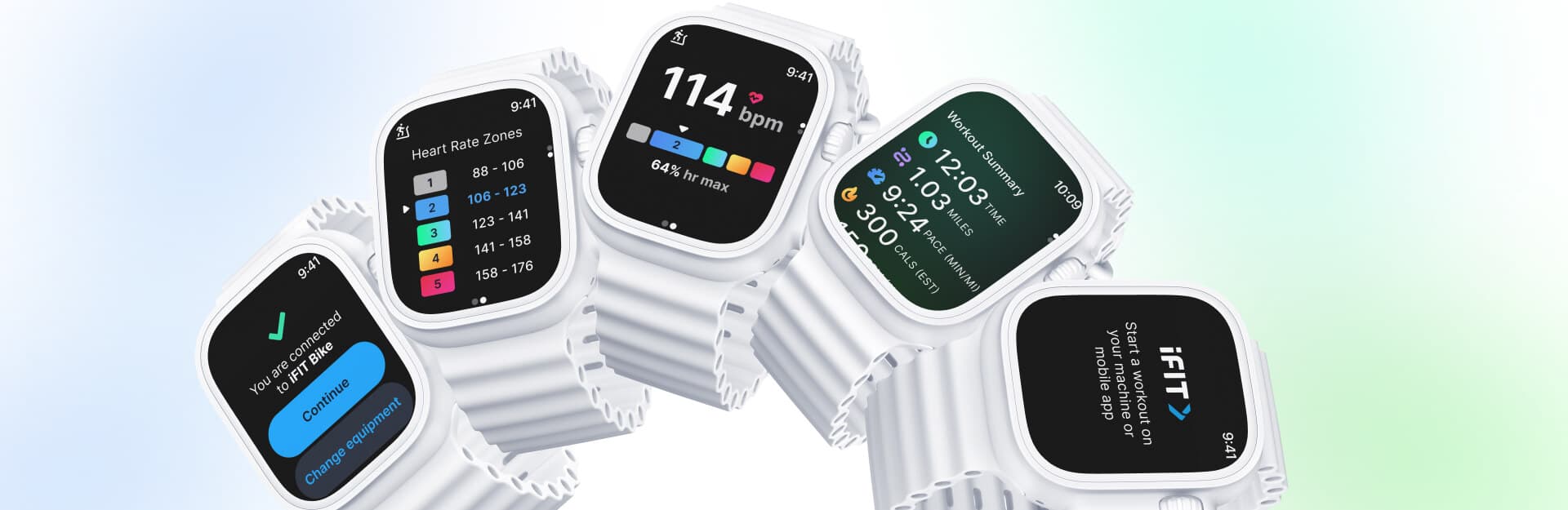
You can now pair your Apple WatchⓇ with NordicTrack and ProForm equipment to unlock smarter heart rate tracking, real-time performance feedback, and a personalized fitness experience, all from your wrist. Whether you’re walking, running, biking, or rowing, this update helps you stay in control of your training. How it works Once you have the iFIT app on your Apple Watch (see step-by-step instructions for how to do that below), you’re ready to train and track every move. Real-Time Heart Rate & Zone Tracking Once paired, your Apple Watch displays your live heart rate on your iFIT-enabled equipment screen. With color-coded heart rate zones, you’ll know exactly how hard you’re working so you can train smarter, not just harder. Smarter Calorie Burn & Performance Stats Your stats are powered by heart rate data, providing precise estimates of your calorie burn and workout intensity. That means more meaningful feedback and a better way to track your progress over time. Effortless Pairing & Apple Health Sync No complicated setup or extra gear. Just open the iFIT app, tap to connect, and you’re ready to train. After your workout, everything syncs to Apple Health so you can see your full fitness picture, all in one place. ActivePulse™ Smart Training (Treadmills Only) Treadmill users get an extra bonus: ActivePulse™, iFIT’s smart heart rate training technology. ActivePulse automatically adjusts your treadmill’s speed and incline in real time based on your heart rate zone, so you stay optimized and on track. Who Can Use It? Apple Watch compatibility is available for users with a compatible Apple Watch¹ and the latest iFIT app version, paired with select NordicTrack and ProForm machines. Whether you’re a casual walker or a hardcore interval trainer, this feature brings a new level of intelligence and personalization to your workouts. How to Get Started Before you can start tracking, there are some simple steps to set up your device. Once you’ve completed this one-time setup process, you’ll just tap the notification on your watch at the beginning of each workout to connect and begin tracking. Step 1: Ensure iFIT & Apple Watch Are Set Up Install the iFIT app on your phone or tablet and your Apple Watch and make sure your Apple Watch is paired with your phone/tablet. Step 2: Set Permissions & Enable Watch Link To enable permissions, open the iFIT app on your Apple Watch. From there, allow the necessary permissions: Read Heart Rate and Write Workouts. To ensure your Apple Watch connects properly, push notifications must be enabled for the iFIT app on your phone. On your iPhone, go to: Settings > Notifications > iFIT > Toggle on “Allow Notifications.”Push notifications are required for Apple Watch connectivity. Step 3: Train with Precision To track a workout, start a workout on your machine or phone. Your Apple Watch will connect automatically.Your heart rate and zone data will now display in real time on the machine’s console if you have ActivePulse™ turned on.On iFIT treadmills, ActivePulse™ will auto-adjust incline and speed, helping you stay in your optimal zone. Step 4: Finish & Sync When you finish, the workout summary appears on your Apple Watch.Your complete session, including full metrics, will sync automatically to Apple Health if you’ve enabled Apple Health permissions in the iFIT mobile app, and to your iFIT workout history. For future workouts, start tracking by tapping the notification on your watch to connect. We are committed to creating personalized fitness experiences for you, starting with a seamless connection to the wearables you love. 1. Apple Watch requires watchOS 8.0 or later. Compatible with Series 4 and newer. 2. ActivePulse™ is only available on iFIT-enabled treadmills.
July 25, 2018

New Feature: Connect iFIT to your Favorite Fitness Apps
Whether you’re out running your favorite trail or cycling at home, every single workout is important. We believe tracking your fitness journey in a single location is a key component to chasing your goals. You can now connect your iFIT account with Apple Health™, Garmin® Connect, Google Fit™, and Strava, so all of your workouts are in one place! Note: Only iFIT workouts from the iFIT Library will count toward your iFIT Milestones. Important update 12/31/2025: Google Fit™ is a deprecated service and is no longer supprted by Google. As a result, iFIT no longer supports new Google Fit connections. We’re actively working toward supporting Google Health Connect, Google’s replacement platform, in a future update. Ready to get connected? Here’s how you can connect your favorite fitness apps to iFIT. Apple Health Garmin Connect Google Fit™ Strava How to connect iFIT to Apple Health: Launch the iFIT app on your iPhone.Tap the three lines in the top left corner to access the menu, then tap on Settings.From Settings, navigate to Connected Apps.On the Connected Apps screen, select Apple Health, then tap Connect.You'll be taken to the Health Access page where you can enable sharing data from iFIT to Health. You can control which types of information iFIT will read and write to Health. How to connect your iFIT and Garmin Connect accounts: Launch the iFIT app on your iPhone or Android phone. Tap the three lines in the top left corner to access the menu, then tap on Settings.From Settings, navigate to Connected Apps.On the Connected Apps screen, select Garmin Connect, then tap Connect.Sign in to your Garmin Connect account.After signing in to your Garmin Connect account, toggle on the preference to share activity data from Garmin Connect to iFIT.Tap the Agree button to connect your iFIT and Garmin Connect accounts.After connecting, you can set your desired preferences to automatically sync your Garmin Connect activities to your iFIT account. Important update 12/31/2025: Google Fit™ is a deprecated service and is no longer supprted by Google. As a result, iFIT no longer supports new Google Fit connections. We’re actively woring toward supporting Google Health Connect, Google’s replacement platform, in a future update.How to connect iFIT to Google Fit™: Launch the iFIT app on your iPhone or Android phone.Tap the three lines in the top left corner to access the menu, then tap on Settings.From Settings, navigate to Connected Apps.On the Connected Apps screen, select Google Fit™, then tap Connect.You’ll be prompted to select the Google account you would like to connect. Tap the Allow button to allow iFIT access to your Google Fit™ account.After connecting, you can set your desired preferences to automatically sync activities between iFIT and Google Fit™. How to connect your iFIT and Strava accounts: Launch the iFIT app on your iPhone or Android phone. Tap the three lines in the top left corner to access the menu, then tap on Settings.From Settings, navigate to Connected Apps.On the Connected Apps screen, select Strava, then tap Connect.Sign in to your Strava account.After signing in to your Strava account, tap the Authorize button to connect your iFIT and Strava accounts.After connecting, you can set your desired preferences to automatically sync your activities between your iFIT and Strava accounts. We hope you enjoy this new feature as you chase your fitness goals with iFIT! Google Fit™ is a trademark of Google LLC. Disclaimer: This blog post is not intended to replace the advice of a medical professional. The above information should not be used to diagnose, treat, or prevent any disease or medical condition. Please consult your doctor before making any changes to your diet, sleep methods, daily activity, or fitness routine. iFIT assumes no responsibility for any personal injury or damage sustained by any recommendations, opinions, or advice given in this article. Always follow the safety precautions included in the owner’s manual of your fitness equipment.
September 2, 2021